You press Print and get one of two things. The whole chart lands on a single sheet with names too small to read, or it comes out as a stack of pages that cut a team in half wherever the paper ended. An org chart too big for one page has three fixes: make the chart smaller, make the paper bigger, or split it across pages on purpose. The first is worth more than it sounds. In our tests in PowerPoint, the layout setting alone moved the same chart between 6-point text and 23.
We make org chart software (OrgPlease!), so treat us as biased. The fixes below work in the tool you already have. How our own export handles the problem comes near the end, with its limits.
The quick fix, by tool
| Tool | Quickest fix | Where it lives |
|---|---|---|
| PowerPoint (and SmartArt in Excel or Word) | Change the layout of the widest team or level | SmartArt Design, Create Graphic, Layout |
| Visio | Fit the drawing to a set number of sheets, or let the wizard break it across pages | File, Print, Page Setup, Print Setup |
| Google Sheets | Make the boxes smaller | Customize, Org |
| Any PDF | Tile it as a poster | Print, Page Sizing & Handling, Poster |
Why is an org chart too big for one page?
Width is the problem, and one team usually sets it. Letter paper in landscape is 11 inches wide. Give each box about two inches, which is close to the narrowest that stays readable, and after margins and gaps you get four across. A manager with nine direct reports already needs more than two sheets side by side, and nobody below those nine has been drawn yet.
Most tools respond by shrinking. PowerPoint's SmartArt keeps everything inside its frame and shrinks the text to fit. Microsoft's SmartArt overview adds that when the text in one shape shrinks, the text in all the other shapes shrinks to the same size. That's why a big SmartArt chart can look fine zoomed in on a monitor and come out of the printer unreadable.
So find your widest row before you pick a fix. It decides which of the three you need.
Fix 1: make the chart smaller without shrinking the text
Try these in order.
Use the page in both directions. SmartArt shrinks the whole chart until it fits, so the text size is set by whichever direction runs out first. The Layout button trades width for height. In PowerPoint, click a manager's box. On the SmartArt Design tab, in the Create Graphic group, click Layout. Standard puts that manager's reports in a row. Left Hanging and Right Hanging stack them in a column, and Both makes two columns. Microsoft's instructions say hanging layouts are available only with the organization chart layouts, so if the option is missing, check which hierarchy graphic the diagram was built from. The same steps apply to SmartArt in Excel and Word. (New to SmartArt? Start with how to make an org chart in PowerPoint.)
We measured what each choice does in PowerPoint for Microsoft 365, on a Letter landscape slide with short labels in the boxes:
| Chart | As PowerPoint draws it | After changing the layout |
|---|---|---|
| 25 boxes: four managers with five reports each | 23 pt | Nothing to gain. Set to Standard, it drops to 6 pt |
| 53 boxes: four VPs, each with three managers of three | 9 pt | 13 pt, with each VP set to Both |
| 12 boxes: one manager with a team of eight | 16 pt | 27 pt, with that manager set to Both |
| 37 boxes: one person with twelve direct reports of two each | 9 pt | No gain. Both gave 8 pt, a hanging layout 5 |
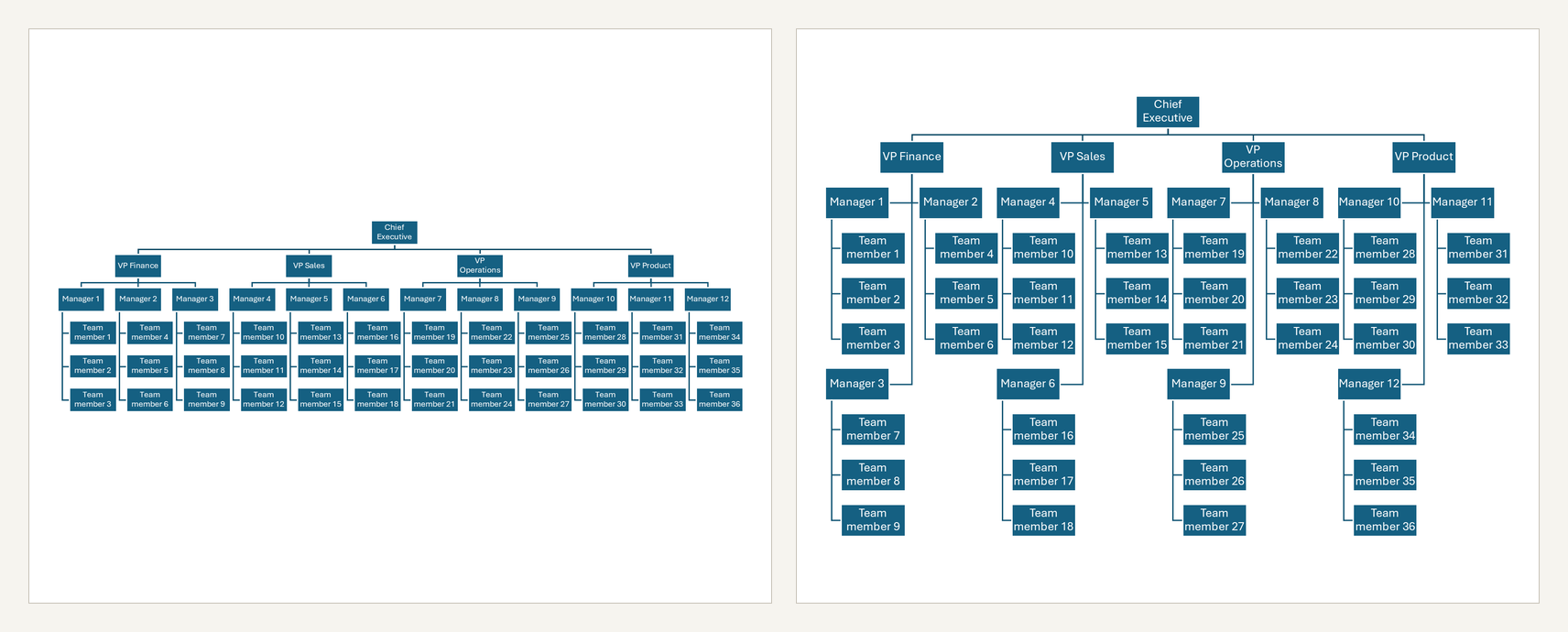
Two things follow. PowerPoint already stacks a bottom-level team under its manager, so if your chart is a thin strip across the middle of the page, someone set those teams to Standard, and setting them back is the whole fix. Beyond that, the gains are one level up and on long teams, and Both is the option to try first. A very wide top row is the case Layout can't help. That one needs bigger paper or a split.
Carry less in each box. A box holding a name and a title is much shorter than one holding a name, title, department, location and phone number, and shorter boxes mean more rows per page. Print the detailed version for HR and the short one for everyone else. I put numbers on this further down.
Print fewer levels. A page that stops at the directors usually fits. The detail below them goes on team pages, which is Fix 3.
Google Sheets has less to offer here: one size setting for the boxes (double-click the chart, open Customize, then Org) and no layout options.
Fix 2: use bigger paper
If a printer near you takes Tabloid (11 by 17 inches) or A3 (297 by 420 mm), you have twice the area of Letter or A4. That's room for more of the chart, or for the same chart at a size people can read. A print shop goes larger.
PowerPoint. On the Design tab, click Slide Size, then Custom Slide Size (Page Setup on a Mac), and enter the paper's dimensions. Don't trust the presets, because they are smaller than their names. We checked: Ledger Paper (11x17 in) makes a slide of 13.32 by 9.99 inches, A3 Paper makes one of 14 by 10.5, and Letter Paper (8.5x11 in) makes one of 10 by 7.5. Type the real width and height yourself. PowerPoint accepts up to 56 inches a side, which covers a poster.
Visio. Go to File, Print, then the small Page Setup link. On the Print Setup tab, under Print zoom, choose Fit to. One sheet across by one sheet down forces the drawing onto a single page. Two by two tiles it over four sheets that you trim and tape.
Any PDF. Adobe Acrobat tiles a page as well, and so does the free Reader. In the Print dialog, under Page Sizing & Handling, select Poster, then set Tile Scale, Overlap and Cut marks. You get a wall chart out of an ordinary office printer and some tape.
Bigger paper suits a chart that hangs on a wall. For the copy that goes into a binder, a board pack or an email, you need the third fix.
Fix 3: print it on multiple pages, split on purpose
Past a few dozen people this is the fix that works, and it's the one the tools make hardest. The requests in forum threads are consistent: a page per department, or a page per manager. One Visio user could get the second and wanted the first.
Three rules keep a split chart readable:
- Break at a manager, never through the middle of a team. Each page is one person and the people under them.
- Repeat the manager. Whoever sits at the bottom of one page appears again at the top of the page that continues their team.
- Say where it continues. Put the page number beside the box at both ends.
Visio is the only one of the three with a feature for this. The Organization Chart Wizard, which builds a chart from an Excel file, asks how to break it up. "I want the wizard to automatically break my organization chart across pages" does what it says. "I want to specify how much of my organization to display on each page" lets you define the pages yourself. The wizard also offers to hyperlink and synchronize employee shapes across pages, so a change to someone's text or data on one page carries to their copy on another. Two cautions. The automatic breaks can be odd: one person on Microsoft's Q&A forum got 15 pages for a 60-person chart. And Microsoft's plan comparison lists generating org charts from data under Visio Plan 2 among the subscriptions, and under the one-time-purchase desktop versions.
PowerPoint has no page break for SmartArt, so you build the split by hand: one slide that stops at the department heads, then a slide per head with their team, copying each head's box onto their own slide. To place boxes freely, select the graphic and on the SmartArt Design tab click Convert, then Convert to Shapes. You can't turn the shapes back into SmartArt afterwards, so work on a copy.
Google Sheets. Google's help pages describe no way to split an org chart across pages. The workaround is one chart per team, each built from its own range of rows.
Whichever tool you use, a split made by hand has to be made again when someone moves. That's the real cost of Fix 3 in a drawing tool.
How OrgPlease! splits pages, and where it stops
This is the part of our product I'd show first.
The chart is built from a spreadsheet of names, emails and manager emails. The Export menu then offers the splits as ready-made choices, with a page count beside each one before you commit:
- Executive summary: the top person and their direct reports on one page.
- Leadership deck: one level deeper, still on one page.
- Full chart: every employee, split across pages.
- Department books: a contents page, then a section for each team that reports to the top.
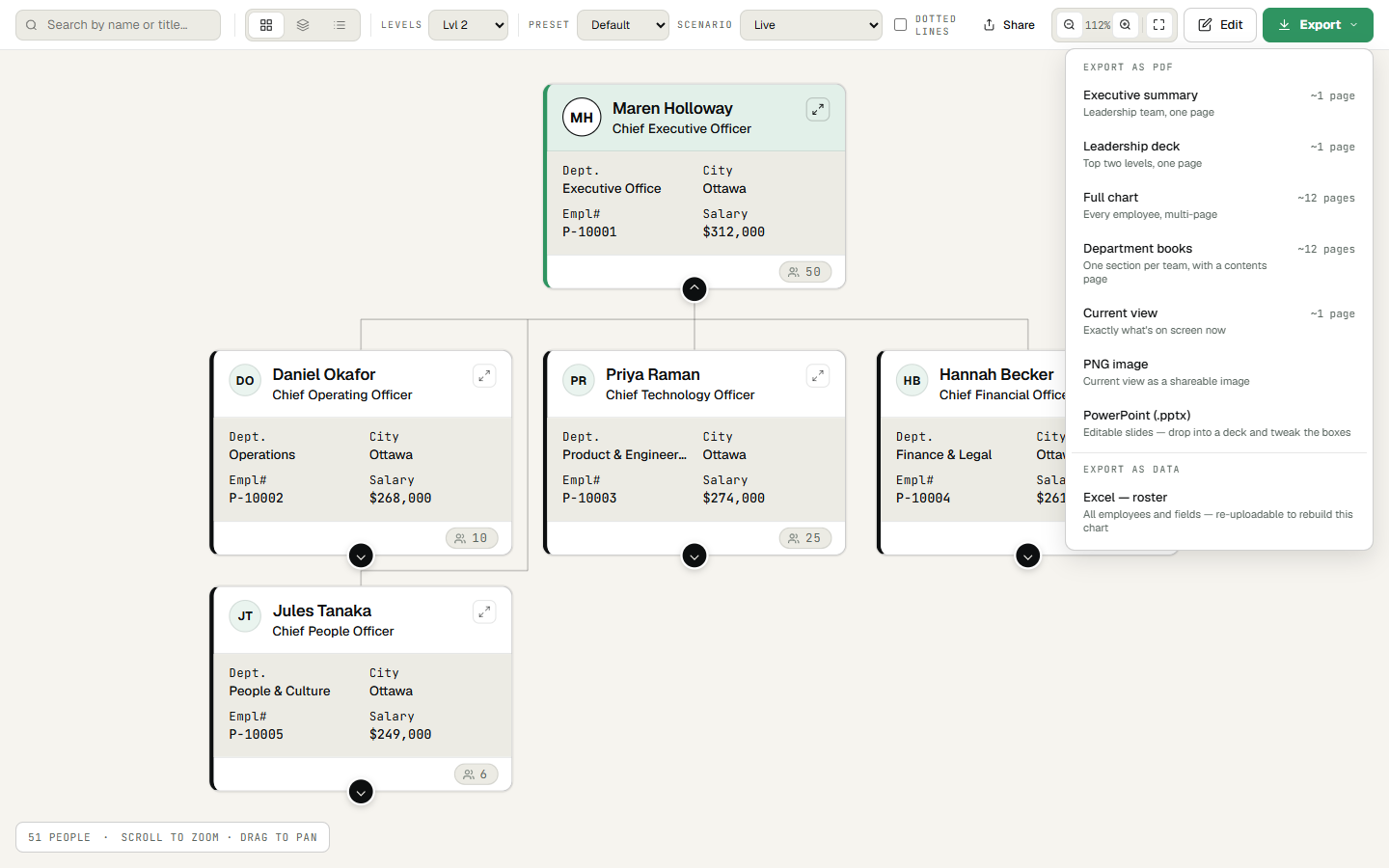
Full chart follows the three rules above. Every page is a manager and the people under them. When a team won't fit, its manager stays on the page with a "Continued on page N" link, and the page it points to opens with that manager at the top and a link back. The same page plan exports to PowerPoint as editable slides, one per page, though the slides don't carry the page links.
How much to put on a page is a judgment call. Ours is to add people only while the cards stay readable, and to use leftover room for the smallest teams first. On our 113-person test roster, with a name and a title on each card, that comes to 19 pages. On 18 of them the cards print wider than two inches, with names at about 11 point on a typical page. The exception is a manager with 14 direct reports, whose page prints at 1.87 inches, with names at about 7 point. We tested a tighter setting. It saved three pages and took the smallest cards down to about 1.5 inches, and we threw it out.
Fields cost pages. The same roster on the card the app shows by default (email, title and five more fields) runs to 22 pages, and that 14-report page drops to 1.54 inches. With every field switched on it's 31 pages. Make a lean preset before you print.
For scale, UK government guidance on accessible documents asks for at least 12 point. A typical page with a lean card comes close. The crowded ones don't, ours included, so print one page and read it at arm's length before you print forty.
The limits:
- The multi-page exports are US Letter landscape, with no A4 or Tabloid option. For a wall chart, export Current view instead. It makes a single page the size of the chart, which a print shop can print or the Acrobat Poster setting from Fix 2 can tile.
- A manager and their direct reports always share a page. Up to 12 direct reports, the cards stay above two inches. From 14 to 20 they print at about 1.85 inches, and at 25 or 30, about 1.5.
- The free plan covers 25 people. Above that the chart opens as a view-only preview, and exporting needs a paid plan (Starter is $19 a month for up to 50 people, Team is $49 for up to 200, Business is $99 for up to 1,000) or the 7-day trial, which takes a card and charges it when the trial ends. A chart too big for one page is usually past 25 people, so know that before you upload. You can open the preview and read the page counts without paying.
- The chart is as current as the last spreadsheet you uploaded.
Which fix to use
| If the chart | Use |
|---|---|
| leaves empty space on the page while the text is tiny | Fix 1: change the layout and trim the fields |
| will hang on a wall | Fix 2: Tabloid, A3 or a tiled poster |
| goes into a binder, a board pack or an email | Fix 3: split it by manager |
| changes every month | a tool that makes the split for you |
Past a few dozen people, a readable one-page org chart stops being possible on office paper. Decide whether you want a wall chart or a set of pages, then use the fix that produces it.
Too big for one page? Upload your roster and see how it splits, page counts included, before you pay for anything. Free up to 25 people. Larger rosters export on a paid plan or the 7-day trial. Start your free org chart
Related reading: Lire cet article en français · How to make an org chart in PowerPoint · Export an org chart to PowerPoint · How to export an org chart from Microsoft Teams