The Organization tab in Microsoft Teams shows who reports to whom, one person at a time. Then someone wants the whole chart as a PDF, for a board pack or an audit, and you go looking for the Export button. There isn't one. Microsoft gives you no way to export an org chart from Microsoft Teams as a chart. The data it's drawn from is another matter: you can get that out, and it's all a chart needs. Below are three routes. The first skips the data and prints the screen. The other two get the data out, and which of them fits depends on the size of the company and on how much access you have.
We make org chart software (OrgPlease!), so treat us as biased. Most of this article is about Microsoft 365, and the last step works in Visio as well as in our product.
Can you export an org chart from Microsoft Teams?
Not with anything Microsoft ships. Its help page for the Organization tab covers looking people up and searching, and stops there. The page for Org Explorer, the bigger chart view in Outlook and Teams, is the same. Neither mentions exporting or printing. On Microsoft's Q&A forum the answer hasn't moved in years. A 2022 reply says the feature isn't available yet, and a December 2025 reply suggests opening Org Explorer in a browser and using the browser's own print command.
What Teams draws is one field. Microsoft's admin reference says the tab shows the hierarchy as it is defined in Microsoft Entra ID, the directory that used to be called Azure Active Directory. Each person's record there can name a manager. Teams, Outlook and Org Explorer all read that field, so that field is the thing to export.
What the export has to contain
Five columns, one row per person: Name, Email, Manager Email, Job Title, Department. The manager's email is the column that turns a staff list into a chart, because it says whose box sits under whose. Routes 2 and 3 below are two ways of filling in those five columns.
Route 1: print what is on the screen
For one manager's team, the browser may be enough. Open Org Explorer in Outlook on the web, find the manager, and print the page from the browser. That suggestion comes from the forum reply above, and we haven't tested it. Microsoft says Org Explorer is pinned in Outlook's navigation bar and comes with Enterprise and Education licences. If you don't have it, a screenshot of the Organization tab in Teams gives you much the same thing.
What you get is a picture of one screen: a manager, the people around them, whatever fit. That's fine for a team page. It won't give you a company.
Route 2: download the user list and add managers by hand
In many organizations this route needs no special rights. Microsoft's instructions say both admins and standard users can download the user list:
- Sign in to the Microsoft Entra admin center at entra.microsoft.com.
- Select Microsoft Entra ID, then Users, then All users.
- Select Download users, then Start. A CSV file arrives.
The file lists 25 attributes, among them displayName, mail, jobTitle and department. The manager is missing, and the 27 attributes that the preview version of the download adds don't include it either. So keep those four columns, rename them, add a fifth called Manager Email, and fill it in by looking each person up in the Organization tab. If your button reads Download users (Preview), the file mirrors the columns shown in the user list, so add job title and department to that list first if they're missing.
For 30 people that's a short, dull job. For 300 it's an afternoon, and you will make mistakes.
If the admin center won't let you in, your IT team has probably switched on the setting that keeps non-administrators out of it. Use Route 3 and send them the note further down.
Route 3: a PowerShell script that includes the manager
The manager is available through Microsoft Graph, the API behind Microsoft 365. This script asks for every member account with its manager attached and writes the five columns to a file on your desktop.
# Setup, needed once per user account. The first line lets PowerShell
# load the module. The second downloads it and takes a few minutes.
Set-ExecutionPolicy -ExecutionPolicy RemoteSigned -Scope CurrentUser
Install-Module Microsoft.Graph -Scope CurrentUser -Repository PSGallery -Force

# Sign in. User.Read.All needs an administrator's approval.
Connect-MgGraph -Scopes "User.Read.All"

# Every member account, with its manager attached
$query = @{
    All            = $true
    Filter         = "userType eq 'Member'"
    Property       = "DisplayName", "Mail", "JobTitle", "Department", "Manager"
    ExpandProperty = "Manager"
}
$users = Get-MgUser @query

# Write the five columns to a CSV file on the desktop
$file = Join-Path ([Environment]::GetFolderPath("Desktop")) "org-chart.csv"
$encoding = if ($PSVersionTable.PSVersion.Major -ge 6) { "utf8BOM" } else { "UTF8" }

$users | Select-Object @{n="Name"; e={$_.DisplayName}},
    @{n="Email"; e={$_.Mail}},
    @{n="Manager Email"; e={$_.Manager.AdditionalProperties.mail}},
    @{n="Job Title"; e={$_.JobTitle}},
    Department |
  Export-Csv -Path $file -NoTypeInformation -Encoding $encoding

Disconnect-MgGraph
Before you run it:
- Setup. The first two commands come from Microsoft's install page and are needed once per user account. Set-ExecutionPolicy is the setting that page asks for in Windows PowerShell before the module will load. On a company PC it may already be set, or locked by IT.
- Permission. The script asks for User.Read.All, which Microsoft's permissions reference marks as needing an administrator's consent. In most companies that means IT runs it, or approves it once so that you can. It reads the directory and changes nothing in it.
- Guests. The filter keeps member accounts and leaves guests out.
- Accents. The $encoding line matters if you have a Zoë or a Côté on staff. On a double-click, Excel opens a UTF-8 CSV correctly only when it was saved with a byte-order mark. We opened the same file both ways: with the mark, Zoë. Without it, Zoë. Windows PowerShell and PowerShell 7 need different settings to write the mark, and the script picks the right one for whichever you're running.
If someone else is the administrator, this is the note to send them:
Could you run the attached PowerShell script, or approve the
User.Read.All permission for me so that I can run it?

It reads five things for each member account: display name, mail,
job title, department and manager. It writes them to a CSV file.
It changes nothing in the directory.

I need the file to produce a printable org chart.
One limit on this route: it's for Microsoft 365. An on-premises Active Directory keeps the manager as a distinguished name instead of an email address, so it needs a different script with one more lookup.
Clean the file before you chart it
Open the CSV in Excel. Start with the rows that aren't people. A directory also holds shared mailboxes, meeting rooms and service accounts, and each one comes out as a row. Sort by Job Title and delete the ones that are plainly not staff.
Then look at the blank managers. Anyone with no manager in the directory will sit at the top of the chart. One blank is correct, for the person who runs the place. Ten blanks mean the directory is missing data, and the Organization tab in Teams has the same holes.
Last, save the file as an Excel workbook (.xlsx), which is the format the next step takes.
Turn the file into a chart and print it
In Visio
The Organization Chart Wizard reads an Excel file. It needs a name, a unique identifier and a reports-to value for each person, and you tell it which column is which, so Email and Manager Email do the job. Among the subscriptions, Microsoft's plan comparison puts the wizard in Visio Plan 2, and the one-time-purchase desktop versions have it too. Visio for the web, on Plan 1, has its own route from an Excel table with fixed column names.
In OrgPlease!
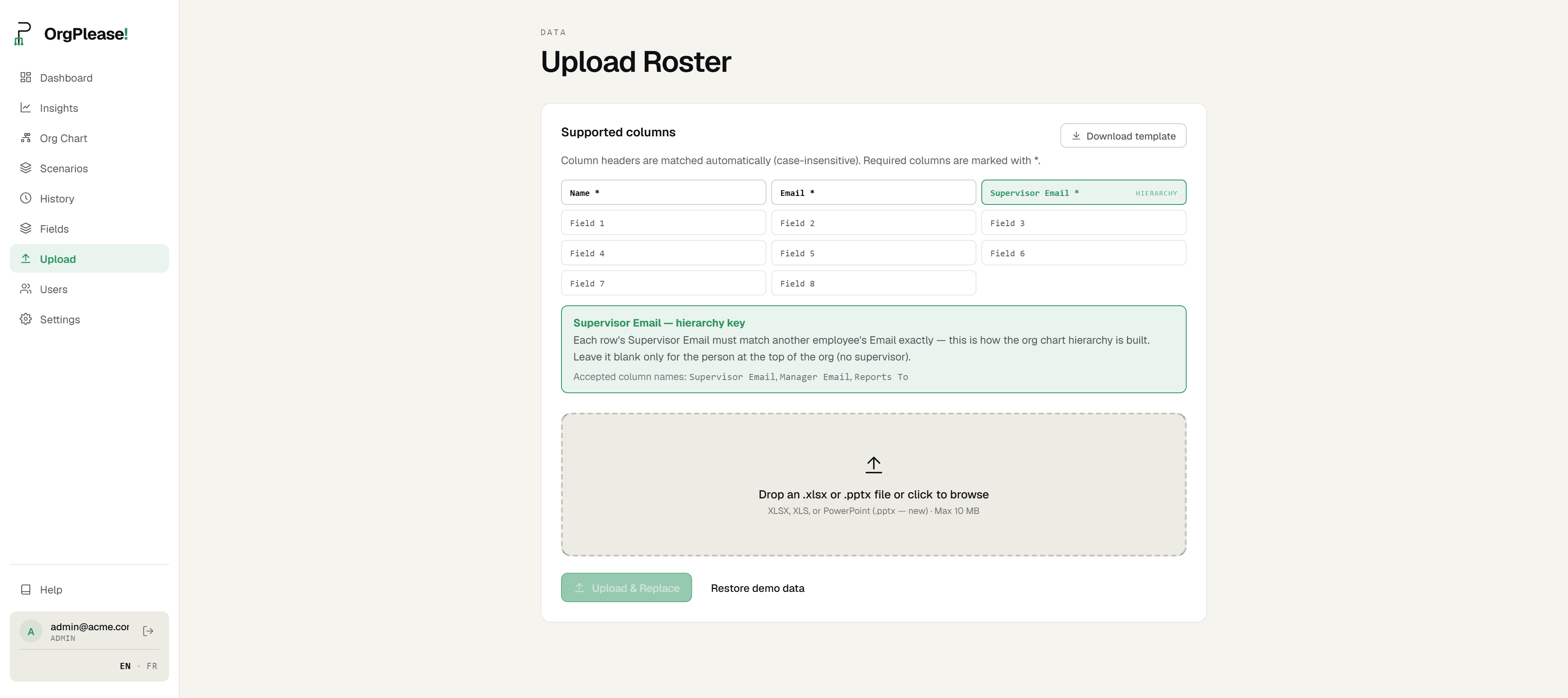
Upload the .xlsx. The importer already recognizes those five headers, so there's nothing to map, and the chart draws as soon as the file is read.
From there the Export menu gives you a PDF split across pages by manager or an editable PowerPoint deck, and Share gives you a read-only link that expires after 30 days. Printing a large chart well is its own subject. We cover it in Org chart too big for one page.
The limits:
- The manager column has to hold email addresses. A name in that column is ignored and the person lands at the top of the chart. A manager email that matches nobody pauses the import and offers the closest matches to choose from.
- A row without a valid email address is skipped without a warning, and the check is strict: an address with an apostrophe in it (o'brien@) fails. Count the people on the chart against the rows in your file.
- The free plan covers 25 people. Above that the chart opens as a view-only preview, and exporting or sharing needs a paid plan (Starter is $19 a month for up to 50 people, Team is $49 for up to 200, Business is $99 for up to 1,000) or the 7-day trial, which takes a card and charges it when the trial ends.
- The chart is a copy of the directory on the day you ran the export.
Keeping it current
That last limit applies to every route in this article. Teams will change and the PDF will stay as it was. Run the export again when the chart has to be right, before a board meeting or after a reorg, and upload the new file.
If you need a chart inside Teams that follows the directory without anyone exporting anything, that's a different kind of product. Paid add-ins for Microsoft 365 do it. Plumsail's Org Chart is one: it runs as a tab in Teams and has its own export. We don't offer live sync.
Which route to use
| You have | Use |
|---|---|
| one team to put on paper | Route 1: print the screen |
| up to about 50 people and no admin rights | Route 2: the download, plus a manager column filled in by hand |
| more than that, or an IT team willing to help | Route 3: the script |
Have the file? Upload it and get a chart you can print, split across pages by manager. Free up to 25 people. Larger rosters export on a paid plan or the 7-day trial. Start your free org chart
Related reading: Lire cet article en français · Org chart too big for one page · How to make an org chart from a CSV file · Export an org chart to PowerPoint