An org changes constantly. Someone joins, someone leaves, a team gets folded into another, a manager picks up two new reports. Individually these are small edits. Over a year they add up to an organization that looks nothing like the one you charted last January — and unless you kept track, you have no record of how it got there.
This is the "Org Chart FINAL v3" problem: a folder full of dated files, none of which you fully trust, and no clean way to see what actually changed between them. Here's how to keep a real version history of your org chart instead — one that records every change as you go, without you having to remember to save anything.
Why track org changes over time
An org chart is usually treated as a snapshot of right now. But "how did we get here" is a real question, and it comes up more often than you'd think:
- A new manager wants to understand how their team was structured before they arrived.
- Finance asks what headcount looked like at the end of last quarter, not today.
- You ran a reorg and someone asks, three months later, exactly what moved.
- An HR or compliance review needs the org as it stood on a specific date.
- A restructure went sideways and you just want to get back to how things were.
Each of these is easy to answer if you kept a timeline, and painful if you didn't. The chart on your screen only ever shows the present.
The painful default
Most teams "version" their org chart by hand, and it goes about how you'd expect. You export a PDF, name it with today's date, and drop it in a shared drive. A month later there's another one. Six months in, there are a dozen files with names like Org-Chart-Mar-final, Org-Chart-Mar-final-2, and Org-Chart-USE-THIS-ONE. Nobody is sure which is authoritative, half of them are screenshots you can't search, and comparing two versions means opening both side by side and squinting.
The deeper problem is that it depends on a human remembering to save at the right moment. The one change you most want a record of — the messy reorg, the surprise departure — is exactly the one nobody thought to snapshot before it happened.
How OrgPlease does it
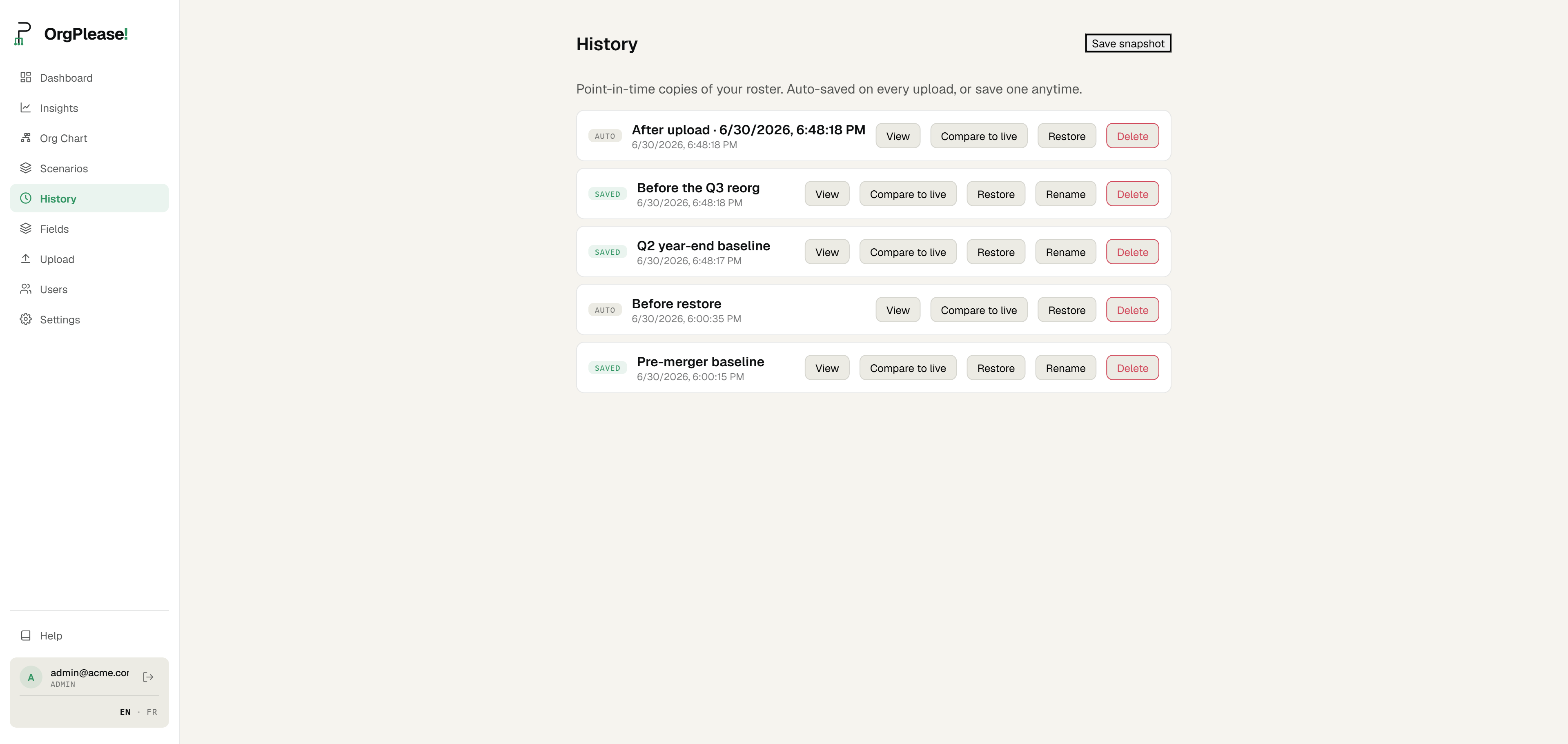
OrgPlease takes the remembering out of it. Every time you upload a roster, it automatically saves a snapshot — a frozen, point-in-time copy of your whole org — before that upload becomes your live chart. You don't click anything. The record is just there.
Here's the honest part. OrgPlease doesn't sync live to your HR system; your chart is as current as the last roster you uploaded, and you refresh it by uploading again. That's a deliberate trade-off — no integration to set up, no data pipeline to maintain, upload the sheet you already have and you're done. And it turns out that same re-upload model is exactly what makes version history free. Because every upload is snapshotted automatically, the act of keeping your chart current is also the act of building its history. You were going to re-upload anyway; now each of those uploads becomes a version you can go back to.
You can also save a snapshot by hand at any point — click Save snapshot and add a label like "Before the Q3 reorg" — for the moments you want marked deliberately. Automatic snapshots are tagged Auto; the ones you save are tagged Saved. Nothing is ever overwritten silently, and there's no limit on how far back the timeline goes.
View, compare, restore
A history is only useful if you can do something with it. Each snapshot gives you three actions:
- View — opens that snapshot in the org chart, read-only, with a banner across the top so you always know you're looking at the past. Editing is switched off so you can browse safely; click Exit to return to your live chart.
- Compare to live — puts the snapshot and your current chart side by side, so you can see exactly what changed between then and now instead of guessing.
- Restore — replaces your live roster with the snapshot. And this is the part that makes it safe to use: restoring is itself undoable. OrgPlease saves a "Before restore" snapshot of your current roster first, so if the rollback wasn't what you wanted, you can step right back. Restore is an admin action, as you'd expect.
Put together, that's the difference between a pile of files you hope are right and a timeline you can actually navigate — look at any past version, measure what moved, or roll back a change without fear of losing the present.
Plan forward and look back
Version history is the "look back" half of a pair. The other half is scenario planning — modelling a change on a private copy of your chart before you commit to it, so you can see a reorg on paper without touching the live org. One lets you rehearse the future; the other keeps a record of the past. Between them you can plan a restructure on a scratch copy, publish it when you're ready, and still have every prior version on file if you need to compare or revert.
Which plan
Version history is a Team feature — it's available on the Team plan ($49/mo) and Business. On Free and Starter you'll see the History page with an upgrade prompt rather than a live timeline. Within a Team or Business workspace, any member can view and compare snapshots; saving, restoring, and deleting are admin-only. Full pricing is on the pricing page.
Bottom line
You don't get a version history by being disciplined about saving files. You get it by working in a tool that saves for you. Because OrgPlease snapshots every upload automatically, keeping your chart current and keeping its history are the same action — and any point in that timeline is one click away from view, compare, or restore. No more "FINAL v3."
Every upload, auto-saved. A full version history of your org chart, on Team and Business. Start your free org chart — free up to 25 people, no credit card.
Related reading: Org chart scenario planning · Compare plans